

WordPress site login problem? Page repeatedly refreshing or redirecting?
Don’t worry, you’re not alone. This is a common problem that many people face. When you try to login and the page returns to the login screen, you can’t even access the admin panel. This is quite frustrating.
But don’t worry in this guide, we’ll show you simple and easy steps that will help you solve this problem.
What could be the reason?
- Sometimes it is a matter of cookies
- Sometimes a plugin is working wrongly
- Or sometimes there is a problem with theme or WordPress settings
In this guide, we will explain every reason step by step and also tell its solution. You can get back access to your website by following these steps.
Want to stay ahead with AI-driven in WordPress insights and stay updated with the latest trends? Subscribe for daily search insights at wpguidepro.com to improve your WordPress strategy.
Table of Contents
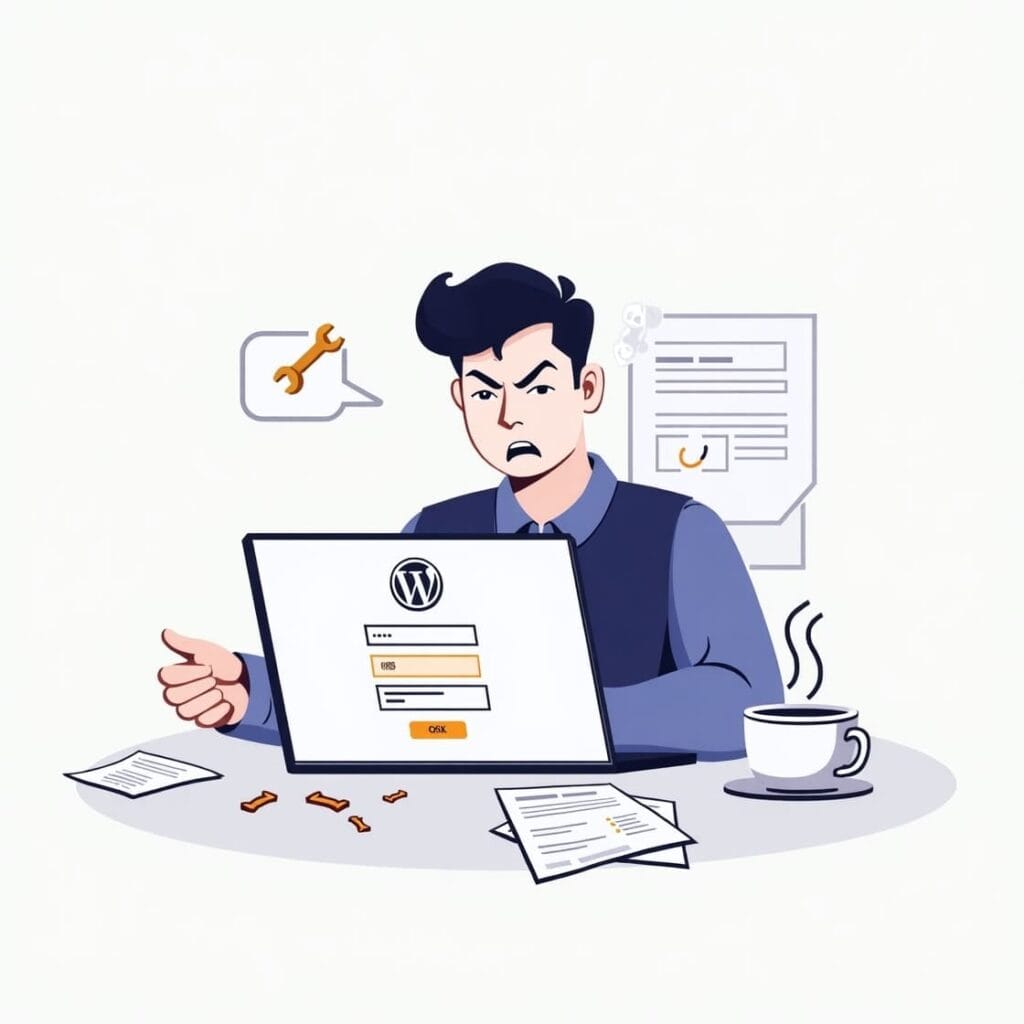
What Causes the Login Page Refresh and Redirect Issue in WordPress?
Before moving on to the solutions, it is important to understand why this issue occurs. Some common reasons could be:
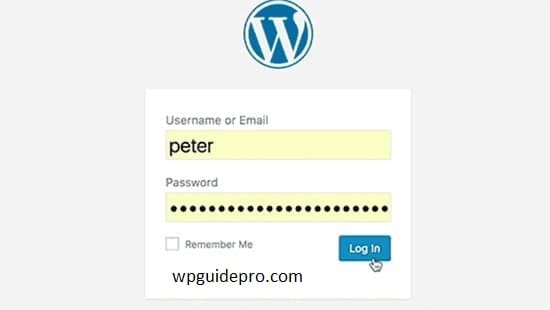
Corruption of cookies or cache: WordPress uses cookies for login sessions. If these are old or corrupted, login does not work.
Incorrect WordPress URL settings: If the WordPress Address (URL) or Site Address (URL) is not set correctly, the page may get redirected repeatedly.
Corruption of .htaccess file: This is an important WordPress file. If it is set incorrectly or becomes corrupt, the page keeps getting redirected (redirection loop).
Bad plugins: Some plugins clash with WordPress or other plugins which can cause login issues.
Bad themes: If your theme is not coded properly or is corrupt then that can also cause issues.
Core files issue: If something goes wrong while installing or updating WordPress then it can cause login issues.
Now that we know why the problem can happen, let’s look at the solutions!
Method 1 Clear Cookies to Resolve Login Issues
Cookies play a very important role in WordPress login. If you clear cookies and cache, things often get better.
How to clear cookies and cache:
- Open your browser (like Chrome, Firefox, or Edge).
- Go to Settings or Privacy section.
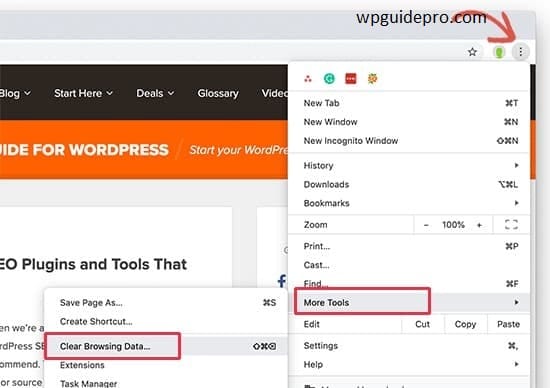
- Find “Clear browsing data” and check that “Cookies” and “Cache” are selected
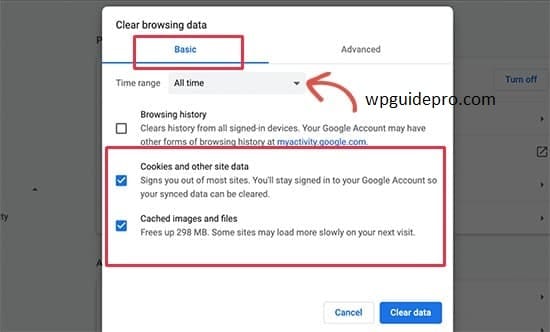
- Clear the data.
- Close the browser and then open it again and try to login again.
If things still don’t get better after clearing cookies, try the next steps.
Pro Tip: If you want, instead of deleting all cookies, just delete WordPress cookies. For this, go to the cookie settings of your browser, search for the domain of your site and delete only its cookies.
Method 2 Update WordPress URL Settings
WordPress needs correct URL settings to run properly. If the URL is wrong, the login page keeps looping.
Steps to check and update the URL:
- Open phpMyAdmin from your hosting control panel.
- Find the wp_options table.
- Find the siteurl and home name records there.
- Check that both URLs are correct. If your site uses HTTPS, the URL should be something like this:
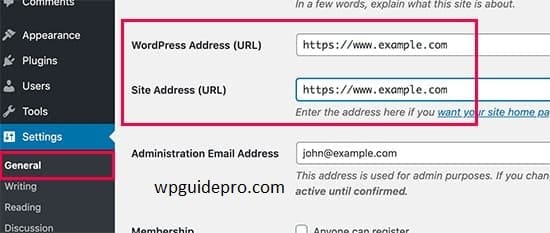
https://example.comMake sure there are no mistakes in the address and there is no extra slash (/) at the end.
Save the changes and then try to login again.
Remember: Changing the database can be risky. Make sure to take a backup before making any changes
Method 3 Delete the .htaccess File in WordPress
The .htaccess file handles backend work of the website, such as redirecting pages. If this file gets corrupted, WordPress login can become a problem.
Method to delete .htaccess file and create it again:
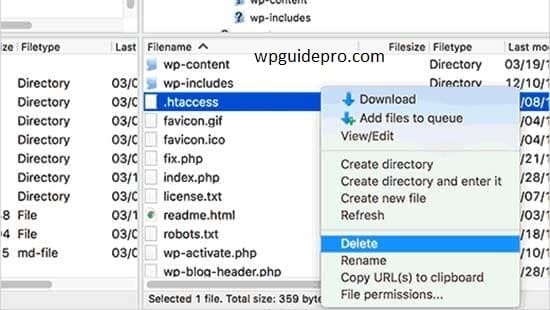
- Use an FTP client (such as FileZilla) or hosting file manager to access your website files.
- Go to public_html or www folder (this is the main folder of WordPress).
- Find the .htaccess file. Download a backup copy of it, so that if something goes wrong you can revert it.
- Now delete the .htaccess file.
- Login to WordPress and see. If you are logged in, go to Dashboard > Settings > Permalinks and then click “Save Changes”. This will create a new .htaccess file.
This method is safe and if the .htaccess file is corrupted, the login problem often gets fixed.
Method 4 Deactivate Your Plugins
Plugins are necessary to add new features to WordPress, but sometimes they also create a login issue.
How to deactivate plugins:
- Use FTP or hosting control panel to access your website files.
- Go to the wp-content/plugins folder.
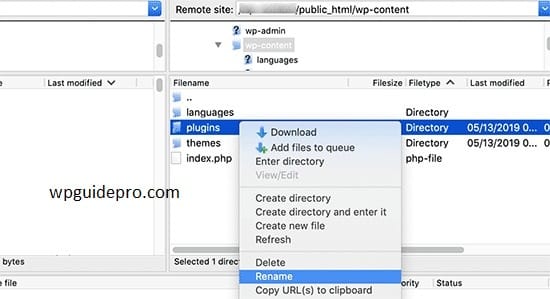
- Change the name of the plugins folder to pluginsold. This will disable all plugins.
- Now try logging in again.
If you log in now, it means that the issue was due to a plugin. To find the problematic plugin:
- Change the name of the pluginsold folder to plugins.
- Deactivate the plugins one by one from the WordPress dashboard, and check every time whether the issue is resolved or not.
Tip: First of all disable the plugins that you have recently installed or updated, as most of the issues are caused by them.
Method 5 Revert Back to the Default Theme
If your theme is bad or does not match WordPress, then the problem may be with login. Going back to the default WordPress theme such as “Twenty Twenty-Three” may fix this problem.
Steps to switch to default theme:
- Access your WordPress files via FTP.
- Go to wp-content/themes folder.
- Change the folder name of your current theme, like mytheme_disabled. This will make WordPress automatically use the default theme (if it is available).
- Now login and check.
If you are logged in now, then the issue is with your custom theme. Get the theme updated or fixed with the help of your developer or theme provider
Method 6 Reinstall WordPress Core
If none of the solutions work, reinstalling WordPress’ core files may fix the issue – especially if the files are corrupted.
How to reinstall WordPress:
- Download a fresh copy from the official WordPress website.
- Upload the wp-admin and wp-includes folders using FTP and overwrite (replace) them.
- Do not overwrite the wp-content folder, otherwise your data may be deleted.
- Now login again and check.
This process keeps your original content safe and fixes the core files.
Important: Before reinstalling WordPress, make sure to take a backup of your site
Avoiding Future WordPress Login Issues
If you want to avoid this problem again, follow the steps given below:
- Always keep your WordPress, themes and plugins updated.
- Use only plugins and themes from trusted and good sources.
- Take regular backup of your website use tools like UpdraftPlus or Jetpack.
- Keep checking your site’s activity with a security plugin like Wordfence.
If you follow all these things, your WordPress site will run smoothly and without any problems.
Recommended Guide:
Cookies blocked fix : https://wpguidepro.com/cookies-blocked-error-in-wordpress/
400 AJAX error : https://wpguidepro.com/wordpress-admin-ajax-400-bad-request-error/
Menu overlap fix : https://wpguidepro.com/fix-wordpress-menu-overlap-fast/
Spam link removal : https://wpguidepro.com/remove-spam-links-save-your-wp-site/
Install WP using USB/XAMPP : https://wpguidepro.com/install-wordpress-usb-stick-using-xampp/