


Adding the OAuth login in WordPress website greatly improves the user experience. This means that people can login directly from their Google, Facebook, or Twitter accounts.
This has two benefits:
- Easy login: User does not need to create a new account.
- Security increases: because these big platforms like Google or Facebook are already secure.
In this guide, we will tell you:
- What is the benefit of OAuth login
- How to install step-by-step method
- You will also get a bonus feature in which you can also use the login system without password (passwordless login)
Want to stay ahead with AI-driven WordPress insights and stay updated with the latest trends? Subscribe for daily search insights at wpguidepro.com to improve your WordPress strategy!
Table of Contents
Benefits of Adding OAuth Login to WordPress
Before the sample, it is important to understand why it is beneficial to add OAuth login in WordPress website.
Better User Experience: The advantage of OAuth login is that the user does not need to create a new username and password every time. People can easily login from Google or Facebook. This saves their time and also eliminates tension.
More Security OAuth Login system takes care of security. In this, the password is not stored directly on the website. Token is used, which is more secure. This reduces the chances of data on your website being hacked.
More people register When the login process is easy, people register quickly. Whether it is a shopping website or a members site, if the wait is less, people join more quickly.
Easy User Management When people login from third-party apps (like Google or Facebook), their information (photo, name, email) comes directly to your WordPress website. This makes it easy for you to manage them
How to Add OAuth Login in WordPress
Adding OAuth login functionality to WordPress is straightforward thanks to the availability of plugins and tools. Below, we’ll walk through the step-by-step process.
Step 1: Choose the Right Plugin
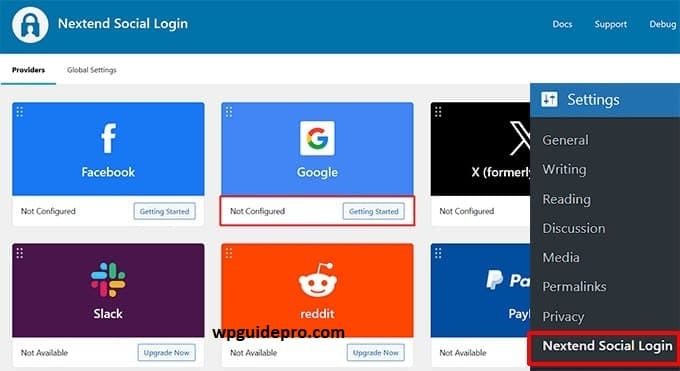
To add OAuth login capabilities, you’ll need a plugin that supports this feature. Popular options include:
• Nextend Social Login and Register (Ideal for basic OAuth integrations like Google, Facebook, and Twitter)
• WP OAuth Server (Great for developers needing more customization)
• MiniOrange OAuth Single Sign On (Perfect for enterprise-level OAuth needs)
Step 2: Install and Activate the Plugin
Go to your WordPress Dashboard:
- Navigate to Plugins > Add New.
- Search for your chosen plugin (e.g., “Nextend Social Login”).
- Click Install Now and then Activate.
Step 3: Configure OAuth Providers
Each plugin allows you to configure OAuth providers such as Google, Facebook, Instagram, or custom identity providers. Here’s how to connect to a provider like Google:
For Google:
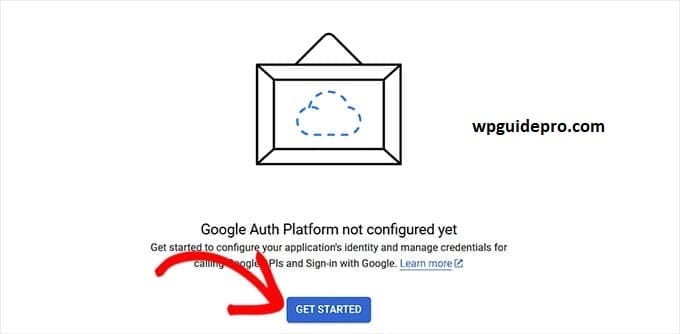
- Create a Project in Google Cloud Console
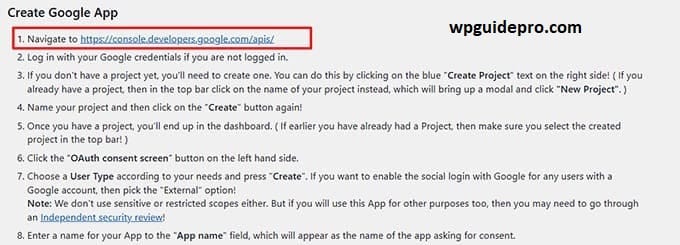
- Go to the Google Cloud Console.
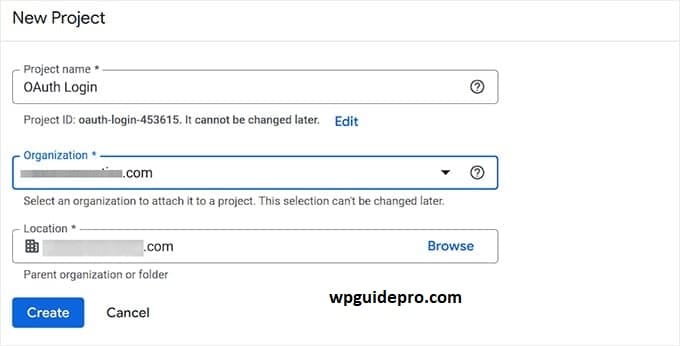
- Create a new project (or select an existing one).
- Navigate to APIs & Services > Credentials and click on Create Credentials > OAuth 2.0 Client IDs.
- Select “Web Application” and configure your redirect URI, which will look like https://yourwebsite.com/wp-admin/admin-ajax.php?action=oauthredirect.
- Copy Your Client ID and Secret
Google will provide you with a Client ID and Client Secret. Save these credentials securely.
- Add the Credentials to Your Plugin
Go back to your WordPress site and enter your Client ID and Secret in the plugin’s settings. Most plugins have specific fields for this under their configuration settings.
Repeat this Process for Other Providers
You can follow similar steps for Facebook, Twitter, or any other provider supported by your plugin. Each platform will have its own developer portal for creating API keys.
Step 4: Customize the Login Experience
After connecting OAuth Login providers, customize how OAuth logins will appear to your users. Most plugins allow you to:
- Add social login buttons to the WordPress login page or registration forms.
- Choose from different button styles or upload custom icons.
- Change display text like “Sign in with Google” to something more fitting for your site.
Step 5: Test the Integration
Before making the feature live:
- Log out of your WordPress account.
- Use an OAuth login button (e.g., “Log in with Google”) to test that the process works without errors.
- Ensure user profiles are being created when OAuth accounts sign in for the first time.
Step 6 (Optional): Enforce Social Login
Some plugins allow you to enforce social login exclusively for account creation and access. This can be useful for websites focusing on simplicity and accessibility.
Bonus: Add Passwordless Login in WordPress with Login Links
If you want people to login easily, then add passwordless login as well. This means that users do not need to remember any password.
A special login link is sent to their email, by clicking on which they can directly login to the website.
How to set up Passwordless Login?
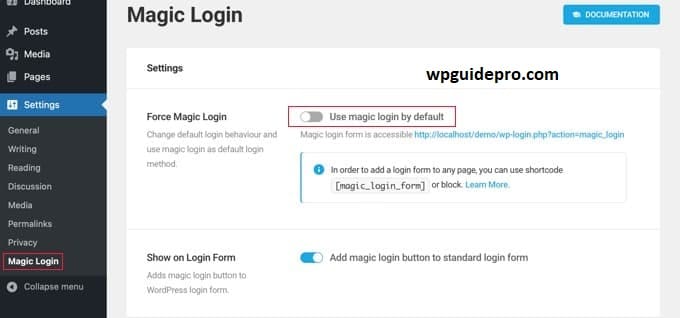
Step 1: Install a Plugin
- You need a plugin. These two plugins are famous:
- Passwordless Login for WordPress
- Magic Login Links
- Go to the plugin section of WordPress, install any of these plugins and activate it.
Step 2: Set Email Settings
After the plugin is activated:
- Go to the plugin settings
- Set the email format, including:
- The subject of the email can be: “Your Login Link for [Website Name]”
- The message contains a special login link that is to be sent to the user
Step 3: Add Passwordless Option to the form
- When the plugin is activated, a new option appears on the WordPress login page:
- “Send me a login link” The user simply writes his email, and the plugin sends a login link using it.
Step 4: Check that everything is working fine
Logout from your account, ask for the login link in the email, and see if everything is working fine or not.
Advantages of Passwordless Login
- Users do not have to remember the password and it becomes easy
- More security is available and chances of getting hacked are reduced
- It gives a good experience even when used with OAuth. You also get the option to login via email
Logging in a Breeze with OAuth and Passwordless Login
If you want to make your WordPress website more easy, secure and fast, then using OAuth login or passwordless login is a great idea.
These features:
- Makes the login process very simple for users
- Strengthens the security of the website
- Makes it easy for your team to manage user data and login system
Whether you are building a membership website, online shop (eCommerce) or tech blog, these tools take your site to the next level.
Related Guides:
Enable Phone OTP: https://wpguidepro.com/enable-phone-otp-login-in-wordpress/
Smart Way to Lock Pages: https://wpguidepro.com/smart-way-lock-wordpress-pages/
Ultimate Social Media Cheat Sheet: https://wpguidepro.com/social-media-cheat-sheet-for-wordpress/
Dark Mode Admin: https://wpguidepro.com/easily-add-dark-mode-to-your-wordpress-admin/
Customize 404 Page: https://wpguidepro.com/customize-your-404-page-in-wordpress/