

If you’re moving your WordPress website from HTTP to HTTPS, this is a good step. This secures your site and gives visitors trust by displaying a green padlock in their browser.
But sometimes, even after installing an SSL certificate, the padlock isn’t visible or appears broken. You might see Not Secure or an info icon, indicating that some part of your site isn’t secure. This problem is called a mixed content error.
Fixing isn’t too difficult. Simply check which files or images are still loading via HTTP and replace them with HTTPS. Whether you use a plugin or edit the files directly, both methods are possible.
In this guide, I’m going to share simple steps you can take to fix this problem and get your green padlock back.
Want to stay ahead with AI-driven WordPress insights and stay updated with the latest trends? Subscribe for daily search insights at wpguidepro to improve your WordPress strategy.
Table of Contents
What Is the Mixed Content Error in WordPress?
First, it’s important to understand how SSL (Secure Sockets Layer) works. When you install an SSL certificate, your website switches from HTTP to HTTPS. This means that your data is encrypted between the website’s server and the visitor’s browser, making it secure.
A Mixed Content error occurs when your website’s HTML is loading via secure HTTPS, but images, videos, CSS, or scripts are still loading via insecure HTTP.
The browser cannot guarantee the security of a page when it sees both secure and insecure elements on the same page, so it displays a warning.
Why does this happen?
There are a few common reasons for this:
Hardcoded URLs: Sometimes you manually added images or links to a theme or widget with http:// before the SSL switch.
Plugin Conflicts: Some plugins use full URLs for their scripts, instead of relative URLs.
Theme Settings: The logo or background image in your theme is referencing an old HTTP link.
Why it’s important to fix it
Ignoring this error is not right for a professional website. Modern browsers like Chrome and Firefox block insecure content. If scripts or styles are blocked, the website may break or not function properly.
Most importantly, the Not Secure warning damages user trust. If visitors feel the site is unsafe, they won’t make purchases or share personal information. Search engines also prioritize secure sites, so mixed content can hurt your organic traffic.
Fixing WordPress Mixed Content Error
There are two main ways to fix your mixed content problem:
- Using a plugin the easiest method.
- Manually fixing files and database a clean and long-term solution.
I’ll explain both; you can choose the one that’s easiest for you.
Check Your WordPress URL Settings
Sometimes the problem is simple:
- website URL is still on HTTP.
- Go to the WordPress dashboard → Settings > General.
- Check the WordPress Address (URL) and Site Address (URL).
- Both should start with HTTPS (https://).
- If it’s HTTP, change it and save your changes.
Identify the Error with Browser Tools
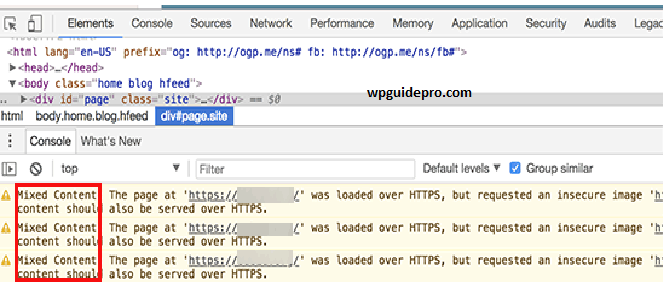
If the URL is correct but the problem still persists, the browser will tell you which file is causing the problem.
- Open the page with the error.
- Right-click → Inspect.
- Open the Console tab.
- Look for red or yellow warnings.
Example: Mixed Content: The page at ‘https://yoursite.com‘ was loaded over HTTPS, but requested an insecure image ‘http://yoursite.com/image.jpg‘” This tells you which image or script is causing the problem.
Method A: Plugin Solution (Easiest)
If you don’t want to edit code, a plugin is the fastest.
Using the SSL Insecure Content Fixer plugin:
- Install and activate the plugin.
- Go to Settings > SSL Insecure Content.
- Default level is Simple, which fixes most scripts and styles.
- Clear your browser cache and check your site.
If the error still persists, try the Content or Widgets level in the settings.
Note: Using the plugin may slow down your site slightly because it processes page content before loading.
Method B: Fixing the Database
If the problem is due to old image links (those inserted in posts), performing a search and replace in the database is the best solution.
- Important: Back up your database first.
- Install and activate the Better Search Replace plugin.
- Go to Tools > Better Search Replace.
- Under Search for, type: http://yourdomain.com
- Under Replace with type: https://yourdomain.com
- Select all tables.
- First, check Run as a dry run. This indicates how many changes will be made without actually changing.
- Run Search/Replace.
Check the dry run result. If everything is correct, uncheck the dry run box and run the actual run.
This is a permanent fix. The plugin will no longer be required permanently.
Method C: Fixing Theme Files
Sometimes the problem is caused by a hardcoded URL in the theme’s PHP or CSS files.
- Identify the problematic URL using the console method.
- If this is a logo, footer, or sidebar image, go to Appearance > Customize and re-upload it.
- If it’s not found there, check the theme files: header.php, footer.php, functions.php.
Search for http:// in the file and replace it with https://. Or use a relative path: //yourdomain.com.
Learn More Ways to Solve Common WordPress Errors
Fixing mixed content errors is crucial if you want your website to look healthy, secure, and professional. When everything loads via HTTPS, you make visitors feel safe and send a positive signal to search engines.
Whether you used a plugin or updated your database, your green padlock should now be visible. But remember, website maintenance is an ongoing process. As your site grows, you may encounter additional problems, such as a White Screen of Death, 404 errors, or memory limit issues.
Regularly checking your site, taking backups, and following WordPress best practices keeps your website strong and error-free. Now that the site is secure, take some time to check your other security settings to ensure your data remains safe.