


Seeing a negative review when you’re working hard on your business can be a bit discouraging. Seeing a one-star rating can make your hard work feel like it’s gone to waste. It’s perfectly normal to wonder if you can just remove it. Can you delete a Google review?
The short answer is no, but that doesn’t mean you can’t do anything. You have a lot of power to manage your online reputation. In this guide, we’ll show you what you can do about negative Google reviews. Especially if a review is fake, or how you can control only the good reviews on your website.
Want to stay ahead with AI-driven WordPress insights and stay updated with the latest trends? Subscribe for daily search insights at wpguidepro to improve your WordPress strategy.
Table of Contents
Can Negative Google Reviews Hurt Your Business?
This is absolutely possible. Online reviews are the new word-of-mouth these days, and people trust them a lot. Most customers check online reviews before visiting a business. If the reviews are bad, people will doubt your business before they even visit, brand trust will decrease, and sales will be affected.
But a few negative reviews are okay. Sometimes, mixed reviews can seem more genuine, as only 5-star reviews can often appear fake. The most important thing is how you handle negative reviews and highlight positive ones.
Can You Actually Delete Google Reviews? (The Truth)
Let’s get straight to the point
You can’t delete a customer review on Google. Only the person who wrote it can edit or delete it. Google created this system to ensure reviews are real and fair.
This way, business owners can’t falsely portray their services as perfect by removing negative information. Yes, it can sometimes be frustrating when an unfair or fake review appears, but this rule protects the integrity of the review system.
But that doesn’t mean you can’t do anything at all. If a review breaks Google’s policies, you can flag it and send a removal request.
How to Report a Google Review With Your Business Profile
If you believe a review is fake, spam, or violates Google policies, you can report it.
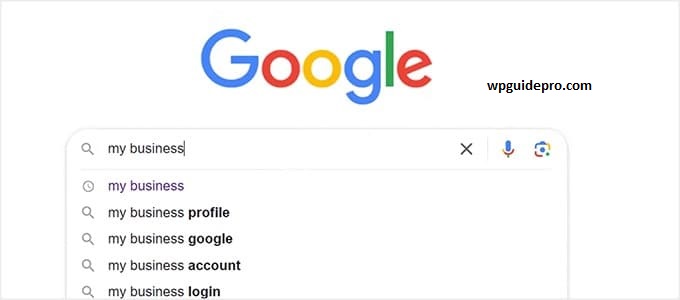
A simple way to do this:
Log in to your Google Business Profile.
- Go to the Reviews section.
- Find the review you want to report.
- Click the three dots next to the review and select Report review.
- Choose the reason that best fits and submit the report.
The Real Solution: Control Which Google Reviews Appear on Your Website
You can’t control the reviews that appear on Google, but you have complete control over your website. You can choose to display only the best Google reviews on your website so that visitors see a positive customer experience and strengthen social proof.
An easy way to do this is with the WordPress plugin Smash Balloon Reviews Feed Pro. This plugin lets you create a custom feed of Google reviews and decide which reviews appear on your site.
Let’s take a look at the steps:
Step 1: Install and activate Smash Balloon Reviews Feed Pro
First, purchase the plugin and download the plugin file from your Smash Balloon account.
Go to the WordPress dashboard → Plugins » Add New → Upload file → Install and activate.
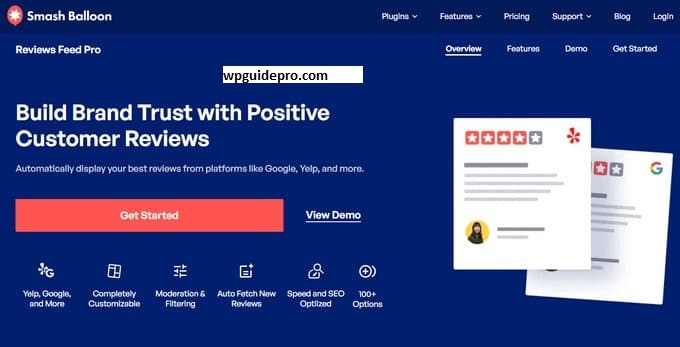
Step 2: Create a Review Feed and select Google as the source.
Once the plugin is activated, go to the WordPress dashboard → Reviews Feed » All Feeds → Click Add New.
The source will be asked thereselect Google and press Next.
Step 3: Connect your Google Business Profile (with API Key and Place ID)
To connect a Google Business Profile, you need a Google API Key and Place ID.
The plugin will provide you with a link and steps—follow the onscreen instructions, create an API Key, then copy your business’s Place ID. Paste both into the plugin, and the profile will be connected.
Step 4: Customize Your Google Reviews
Now the fun part begins! Smash Balloon’s live editor lets you choose the layout—list or grid. You can change colors, adjust the font size, and even customize the header and “Load More” button to suit your branding.
Step 5: Decide which reviews to show
From here, you have complete control:
Filter by Star Ratings
You can set whether only 4-star and 5-star reviews are shown.
This will show visitors your best reviews.
Keyword Filter
If you want reviews that say things like “great service” or “fast shipping” to show up, add include keywords.
If a review mentions a negative word or a unique issue, add that to the exclude keyword.
Manual Moderation
This gives you full control—a review will only be published if you approve it.
This ensures unwanted reviews never appear on your website.
Step 6: Embed Filtered Google Reviews on Your Website
Once you’re satisfied with the feed, click the Embed button in the editor.
You’ll receive a shortcode paste it into any page or post. Or use WordPress’s Reviews Feed block.
Best Practices for Managing Your Online Reputation
Get More 5-Star Reviews (The Absolutely Ethical Way)
The best response to negative reviews is to have a collection of strong positive reviews.
Encourage happy customers to provide feedback.
You can do this in simple ways:
- By sending a follow-up email after a purchase.
- By adding a Google review link to your website or at the bottom of receipts.
- By politely approaching the customer directly when they’re happy.
Respond Professionally to Every Review
Whether the review is positive or negative, responding is crucial.
Thank positive reviews.
Respond to negative reviews in a calm, professional, and sensible manner and try to resolve the issue offline.
A good response often turns the situation into a positive one.
Collect reviews directly on your website
Don’t rely solely on third-party platforms.
Using a tool like WPForms, add a simple review form to your website.
This allows you to get direct feedback—and resolve any issues before they become public reviews.
Frequently Asked Questions About Google Reviews
How long does it take for Google to remove a reported review?
It can take anywhere from a few days to a few weeks. Google manually checks every report, so there’s no fixed time.
Can I pay Google to remove a negative review?
No. Google doesn’t remove reviews for money. Any service that claims to do so isn’t genuine.
Does review deletion affect my star rating?
Yes. If a review is deleted, it doesn’t count towards your overall rating.